Showing posts with label org-mode. Show all posts

Wednesday, October 14, 2015

A simple LaTeX editor in iOS: MMD

LaTeX with MMD or Org-mode with MathJax

LaTeX with MMD or Org-mode with MathJax


This post is written with e[ ⎋Esc ]m[ ⌥Meta ]a[ ⌥Alt ]c[ ^Ctrl ]s[ ⇧Shift ] org-mode.


System Environments

Operating Systems

  • Main- : OS X Yosemite (10.10.5)
  • Sub- : Debian GNU/Linux Wheezy (7.9)
  • Server: Debian GNU/Linux Wheezy || Squeeze
  • Mobile: iOS 9.0.2

$$ \newcommand{\dd}{\mathrm{d}} $$


A brief comment on MultiMarkdown

MultiMarkDown(MMD) with LaTeX, particularly mathematical formulae, isn't hard in any text editor supporting markdown preview. All we need is adding the following code probably on the beginning of your MMD file.

<script type="text/javascript"
  src="https://cdn.mathjax.org/mathjax/latest/MathJax.js?config=TeX-AMS-MML_HTMLorMML">
</script>

It's gonna automatically render a mathematical formula written in LaTeX into HTML by means of MathJax engine. List of softwares I've tested is

Remember that an equation has to be enclosed by $ and $, \( and \), \\[ and \\], or etc. as suggested by MathJax or Fletcher T. Penney. For the others, you can follow the usual Markdown or Multi-markdown syntaxes.

Rendering MMD with LaTeX to HTML may not work properly as expected. Sadly, usage of LaTeX in MMD is not recommendable (yet) by comparison with Org-mode working perfectly. For example, an HTML output rendered from any of above first three would be seen appropriately in Safari (or Mobile Safari), but might not in the others like Firefox(or even not in Safari sometimes).

Nevertheless, it is worth mentioning that an MMD editor supporting MD preview would be a great alternative to use LaTeX in iOS, such as Nebulous Notes.
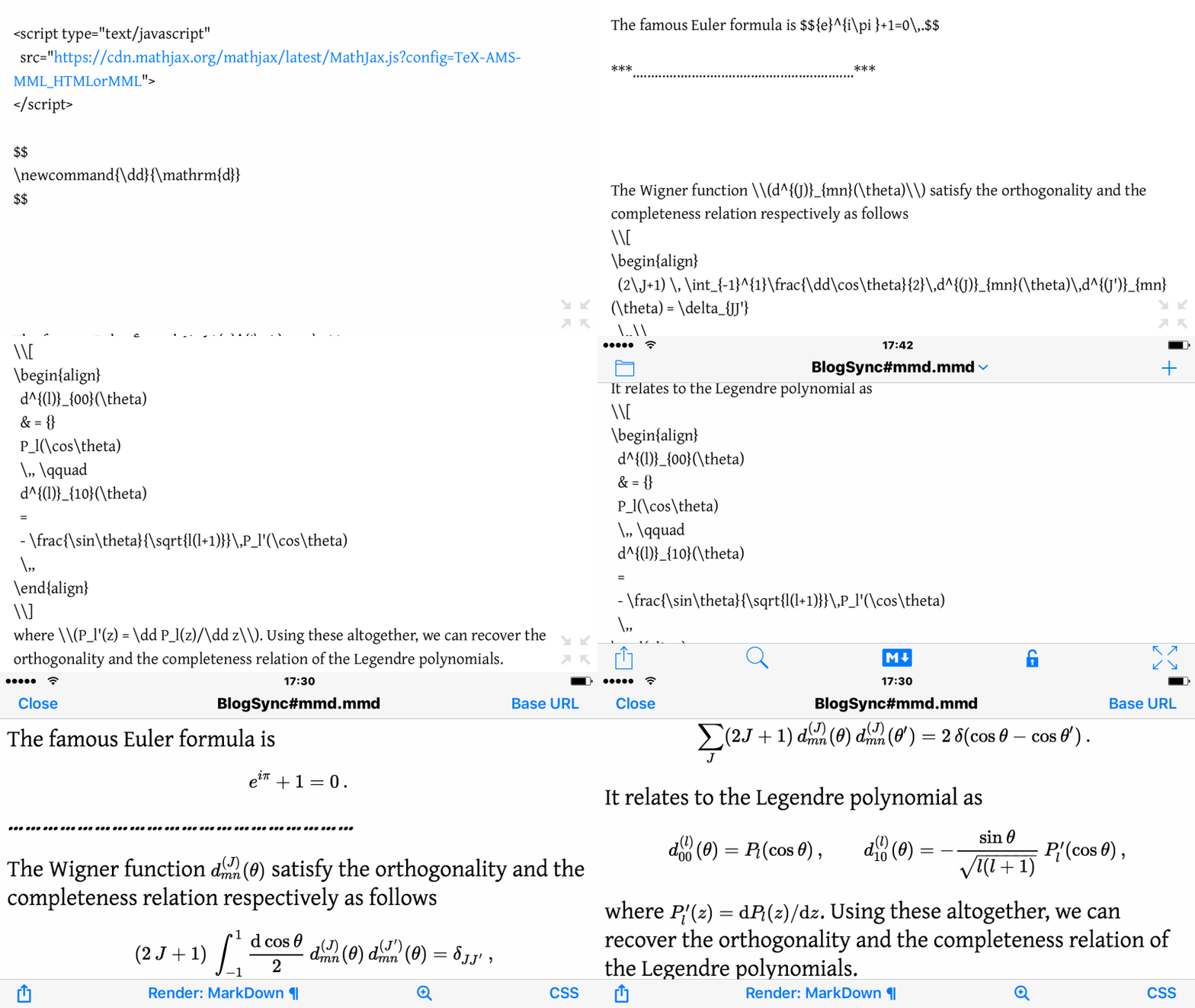
22154811262_9daab98c1e_o.gif

Figure 1: LaTeX and its rendering in Nebulous Notes


LaTeX example and a tip

In order to use a manual command you want, it can be easily done by putting the following code somewhere in your MMD file or Emacs Org-mode file. It works in both.

$$
\newcommand{\dd}{\mathrm{d}}
$$

I here present the almost same output from the one LaTeX expression w/ two different markup languages: MMD and Emacs Org-mode.

Output

The famous Euler formula is $${e}^{i\pi }+1=0\,.$$

……………………………………………………

The Wigner function \(d^{(J)}_{mn}(\theta)\) satisfy the orthogonality and the completeness relation respectively as follows

\begin{align} (2\,J+1) \, \int_{-1}^{1}\frac{\dd\cos\theta}{2}\,d^{(J)}_{mn}(\theta)\,d^{(J')}_{mn}(\theta) = \delta_{JJ'} \,,\\ \sum_{J}(2J+1)\,d^{(J)}_{mn}(\theta)\,d^{(J)}_{mn}(\theta') = 2\,\delta(\cos\theta - \cos\theta') \,. \end{align}

It relates to the Legendre polynomial as

\begin{align} d^{(l)}_{00}(\theta) & = {} P_l(\cos\theta) \,, \qquad d^{(l)}_{10}(\theta) = - \frac{\sin\theta}{\sqrt{l(l+1)}}\,P_l'(\cos\theta) \,, \end{align}

where \(P_l'(z) = \dd P_l(z)/\dd z\). Using these altogether, we can recover the orthogonality and the completeness relation of the Legendre polynomials.

Source for MMD

<script type="text/javascript"
  src="https://cdn.mathjax.org/mathjax/latest/MathJax.js?config=TeX-AMS-MML_HTMLorMML">
</script>

$$
\newcommand{\dd}{\mathrm{d}}
$$

The famous Euler formula is $${e}^{i\pi }+1=0\,.$$

***............................................................***

The Wigner function \\(d^{(J)}_{mn}(\theta)\\) satisfy the orthogonality and the completeness relation respectively as follows
\\[
\begin{align}
  (2\,J+1) \, \int_{-1}^{1}\frac{\dd\cos\theta}{2}\,d^{(J)}_{mn}(\theta)\,d^{(J')}_{mn}(\theta) = \delta_{JJ'}
  \,,\\
  \sum_{J}(2J+1)\,d^{(J)}_{mn}(\theta)\,d^{(J)}_{mn}(\theta') = 2\,\delta(\cos\theta - \cos\theta')
  \,.
\end{align}
\\]
It relates to the Legendre polynomial as
\\[
\begin{align}
  d^{(l)}_{00}(\theta)
  & = {}
  P_l(\cos\theta)
  \,, \qquad 
  d^{(l)}_{10}(\theta)
  = 
  - \frac{\sin\theta}{\sqrt{l(l+1)}}\,P_l'(\cos\theta)
  \,,
\end{align}
\\]
where \\(P_l'(z) = \dd P_l(z)/\dd z\\). Using these altogether, we can recover the orthogonality and the completeness relation of the Legendre polynomials.

Source for Emacs Org-mode

#+HTML_HEAD: <script type="text/javascript" src="https://cdn.mathjax.org/mathjax/latest/MathJax.js?config=TeX-AMS-MML_HTMLorMML"> </script>

$$
\newcommand{\dd}{\mathrm{d}}
$$

The famous Euler formula is $${e}^{i\pi }+1=0\,.$$

*............................................................*

The Wigner function $d^{(J)}_{mn}(\theta)$ satisfy the orthogonality and the completeness relation respectively as follows
\begin{align}
  (2\,J+1) \, \int_{-1}^{1}\frac{\dd\cos\theta}{2}\,d^{(J)}_{mn}(\theta)\,d^{(J')}_{mn}(\theta) = \delta_{JJ'}
  \,,\\
  \sum_{J}(2J+1)\,d^{(J)}_{mn}(\theta)\,d^{(J)}_{mn}(\theta') = 2\,\delta(\cos\theta - \cos\theta')
  \,.
\end{align}
It relates to the Legendre polynomial as
\begin{align}
  d^{(l)}_{00}(\theta)
  & = {}
  P_l(\cos\theta)
  \,, \qquad 
  d^{(l)}_{10}(\theta)
  = 
  - \frac{\sin\theta}{\sqrt{l(l+1)}}\,P_l'(\cos\theta)
  \,,
\end{align}
where $P_l'(z) = \dd P_l(z)/\dd z$. Using these altogether, we can recover the orthogonality and the completeness relation of the Legendre polynomials.


Creative Commons License
This work is licensed under a Creative Commons Attribution-NonCommercial-ShareAlike 4.0 International License.

Created: 2015-10-14 Wed 18:16

Emacs 24.3.1 (Org mode 8.2.10)

Friday, June 5, 2015

Emacs 24

Emacs 24

Emacs 24


이 문서는 e[ ⎋Esc ]m[ ⌥Meta ]a[ ⌥Alt ]c[ ^Ctrl ]s[ ⇧Shift ] org-mode로 작성된 글입니다.


System Environments

Operating Systems

  • Main- : OS X Yosemite (10.10.3)
  • Sub- : Debian GNU/Linux Wheezy (7.8)
  • Server: Debian GNU/Linux Wheezy || Squeeze
  • Mobile: iOS 7.1.2

Emacs Cocoa 24.3 & GNU Emacs 24.3

우선 Emacs 버전부터 짚고 넘어가자.

현재(<2015-06-04 Thu>) Debian GNU/Linux Wheezy에서 debian repository에 저장되어 있어서 apt 로 설치할 수 있는 GNU Emacs는 23.4이다. OSX Yosemite에서 돌아가는 Aquamacs 최신 버전은 3.2이고, 이는 Emacs 24를 기본으로 하고 있다. OSX에서 사용할 수 있는 또 다른 Emacs fork인 Emacs Cocoa는 두 가지 경로를 통해 설치할 수 있다. 하나는 Homepage를 이용하는 것이고, 다른 하나는 MacPorts나 Homebrew 같은 package manager를 쓰는 것이다. Emacs Cocoa Homepage에서 제공하는 가장 높은 버전은 24.5이고 Homepage: Other versions에서는 아래로 23.2까지 다운로드 가능하다. MacPorts 이용자는 Debian의 apt 처럼 최신 버전만 설치할 수 있는데, 이는 24.5이다. 지난 Posts에서도 언급했다시피, Hunspell을 이용한 영/한 맞춤법 검사 를 구현하고자 하는 사용자는 반드시 24.3이나 그 이하 버전을 써야만 이 블로그에서 설명한 방법을 적용할 수 있다.

이번에는 조금 더 구체적으로, Emacs 24.3을 기준으로 그 특징과 Debian에서 설치 방법을 적어볼 생각이다.

Upgrade org-mode

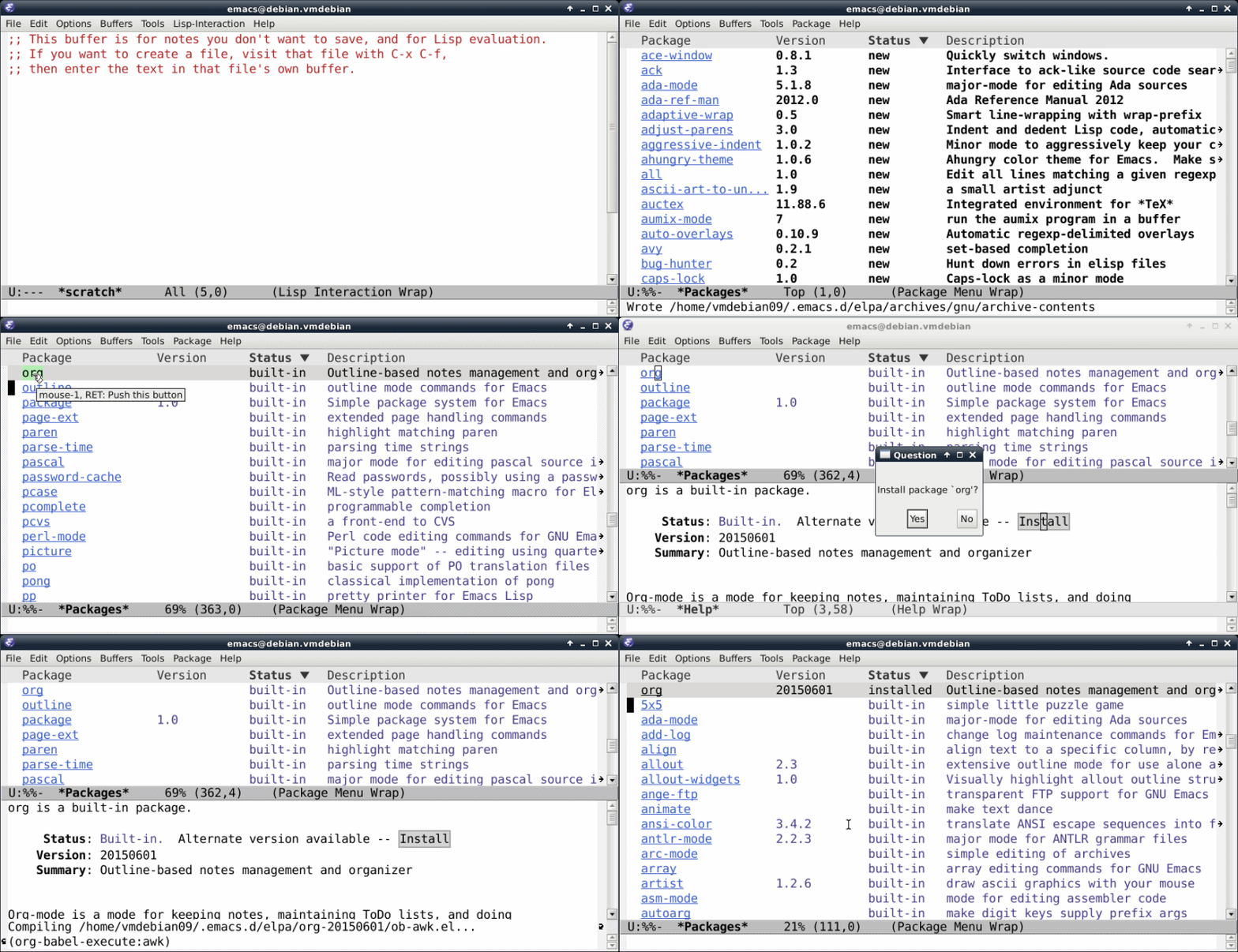
그 전 버전과 차별화되는 Emacs 24의 특징은, marmalade같은 외부 package repository를 사용할 필요 없이 자체적으로 Emacs에 필요한 package를 설치하고 또 설치한 package를 업그레이드할 수 있다는 점이다. Emacs에 기본적으로 설치된 org-mode package를 통해서 어떻게 이를 진행하는 지 살펴보자.

How to upgrade

OS 와는 상관없이 Emacs 24에서 아래의 순서로 진행하면 된다. 단축키는 OSX Emacs Cocoa의 경우를 기준으로 썼고, Debian에서 GNU Emacs 경우는 괄호 안에 기본 표현으로 표기하였다.

  1. Emacs에서 ⌥x (M-x)을 친 후, package-list-packages 쓰고 ↩Return
  2. 세 번째 열 Status에서 가능한 (available) packages와 설치된 (built-in) packages를 볼 수 있다. 이 중 org 를 찾아 클릭한다.
  3. 다음에 등장하는 buffer에서 Install 을 클릭해서 설치하면 끝

18469818431_854726cf90_o.gif

Figure 1: Upgrading org-mode in GNU Emacs 24.3

Trouble shooting

가끔 문제가 발생하는데, 이는 사용자가 Emacs 설정 파일인 ~/.emacs 를 이미 수정해서 쓰는 경우나 marmalade같은 외부 package repository를 사용한 상황에서 주로 발생한다.

  1. Emacs 설정 파일인 ~/.emacs 를 적당한 곳에 백업해 두자.
  2. ~/.emacs.d/ 로 이동해서 elpa 이름의 디렉토리를 지우자. 이동은 Bash (혹은 Termianl)에서 해도 되고, Finder (혹은 Dolphin, Thunar, etc)에서 해도 된다.
  3. Emacs를 실행해서 위의 과정을 다시 한다.
  4. 백업해둔 Emacs 설정 파일을 다시 ~/.emacs 로 복사한다.
  5. 이제 Emacs를 다시 실행하자.

Emacs 24.3 in debain

설치 과정은 여기를 참고했다.1 아래의 명령들을 Bash (혹은 Terminal)에서 순서대로 실행하자.

$ sudo apt-get install ttf-inconsolata build-essential xorg-dev libgtk2.0-dev libjpeg-dev libgif-dev libtiff-dev libncurses-dev autoconf
$ wget http://ftp.gnu.org/pub/gnu/emacs/emacs-24.3.tar.gz
$ tar xvfz emacs-24.3.tar.gz
$ cd ~/emacs-24.3
$ ./configure
$ make
$ sudo make install

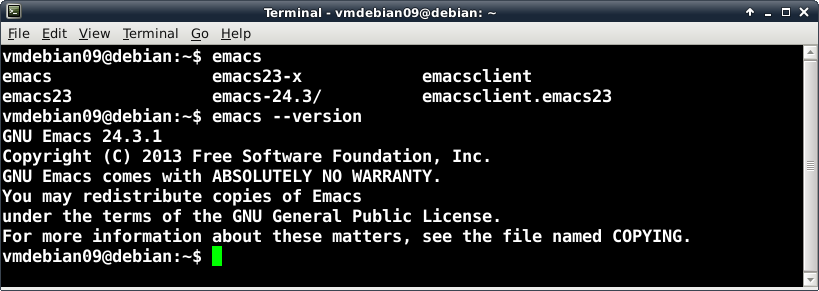
wget 으로 받은 emacs-24.3.tar.gz 파일은 홈디렉토리(~) 아래에 있으니 나중에 지워도 무방하다. 설치가 끝나면 Bash (혹은 Termianl)에서 emacs 까지만 치고 자동 완성을 위해 ↹Tab 키를 두 번 정도 치면, emacs란 이름으로 시작하는 가능한 모든 명령어를 볼 수 있다. 이미 설치했던 emacs 23은 emacs23 으로 바꾸어 있고, 새로 설치한 24는 표면적으로 없는 것처럼 보인다. 하지만 emacs 가 바로 emacs 24이다. 이는 emacs --version 명령어로 확인할 수 있다.

18467159295_4a02b21b93_o.png


Creative Commons License
This work is licensed under a Creative Commons Attribution-NonCommercial-ShareAlike 4.0 International License.
Footnotes:

Created: 2015-06-05 Fri 00:18

Emacs 24.3.1 (Org mode 8.2.10)

Saturday, December 14, 2013

Note in plain text

Note in plain text

Note in plain text


;; =================================================
;; εμαcs is ⎋[esc]⌘[meta]⌥[alt]⌃[ctrl]⇧[shift].
;; =================================================

이 문서는 emacs org-mode로 작성된 글입니다.


Operating System Environments

  • Main- : OS X Mavericks (10.9)
  • Sub- : Debian GNU/Linux Wheezy (7.2)
  • Server: Debian GNU/Linux Squeeze || Lenny
  • Mobile: iOS 7.0.4

시중에는 Note 관련 Apps이나 Applications이 즐비하다. OS X나 iOS 사용자라면, Apple에서 제공하는 Notes.app을 대부분 쓸 것이다. iCloud로 자동으로 sync되는 이 Notes.app은 그냥저냥 쓸 만은 하다. IT 환경에 조금 밝은 사람은 Evernote를 많이 쓴다. 이 역시 나쁜 선택은 아닐 것이다. 그럼 뭐가 불만인가? 내가 Note 관련 Apps이나 Applications에 요구하는 기능은, 한 마디로 하자면, Plain text이다.

  • Plain text는 어떤 OS에서도 완벽히 호환된다.
  • Plain text는 읽거나 수정하는데 있어 특별한 프로그램이 필요치 않다.
  • Plain text는 검색이 용이하다.

다시 되짚어 보자. iCloud는 Apple 제품에서만 쓸 수 있다. Evernote 역시 Linux 버전이 없으며 따로 iOS 버전이던 OS X 버전을 설치해야 사용이 용이하다. 물론 나도 이 글에서 어떤 프로그램을 추천하겠지만, Plain text로 작성된 문서는 기본적으로 따로 특별한 프로그램이 요구되지는 않는다는 점을 다시 한 번 강조하고 싶다.

여기서는 두 개만 예로 들었지만, Note를 표방하는 시중의 대부분의 제품의 가장 큰 문제는 검색이 엉망이라는 데 있다. 아름다운 GUI로 Note 프로그램을 잘 만들어도, 그 안에서만 검색이 가능하거나 그마저도 잘 않되는 것들이 태반이다. Note를 쓰면 쓸 수록, 쓴 글들이 database가 되어, 이를 언제라도 빠르고 쉽게 검색할 수 있어야 진정한 Note라고 부를 수 있지 않을까? 강력한 호환성을 자랑하는 문서 format은 첫째가 단연 plain text고 두 번째로는 pdf라 할 수 있겠다. 한글을 사용할 것이므로 unicode의 한 종류인 utf8으로 note를 작성하고, .txt 확장자로 저장하면 어느 OS에서도 문제 없이 사용할 수 있는 강력한 호환성을 갖게 된다.

Sync는 Dropbox로 해결할 것이다. Dropbox를 쓰는(혹은 추천하는) 가장 큰 이유는 다양한 OS를 지원하기 때문이다. OS X, Linux, Windows의 3대 OS는 물론이고 iOS, Android, BlackBerry에 Kindle Fire까지 지원한다. 또한 API가 공개되어 있어서 다양한 apps에서 접근성 또한 높다. 무료 사용자에게는 2GB 만을 제공하지만, Note 사용에는 한도 끝도 없는 용량이며, 간단한 pdf 파일들로는 일반인들은 다 쓰기도 어려운 용량이다. 어떤 editor든지 .txt 파일로 만들어서 Dropbox directory 아래에 저장만 하면 그냥 sync 된다. 인터넷만 된다면 어디서든 볼 수 있다.

Dropbox 사용의 또 하나의 강력한 장점은, 지난 번에 저장했던 같은 이름의 파일들이 Dropbox server에 고스란히 저장되어 있다는 점이다. 즉, 글을 계속 수정하고 저장해 가며 쓰다가 문득 지난 번에 쓴 표현을 되살리고 싶을 때, Dropbox homepage에 가서 그 이름의 파일에서 secondary click (aka 우클릭) 후, 'Previous versions'을 클릭하면 지난번에 저장했던 파일들이 고스란히 존재하는 것을 볼 수 있다. 시간 순서로 정렬되어 있으므로 적당한 시간대의 파일들을 몽땅 다운로드해서 확인해 보면 된다. 한 가지 주의할 점도 있다. 아직껏 Dropbox hacking 소식없지만, 그래도 기본적으로는 서버에 올리게 되는 것이므로, 개인정보에 관한 파일을 Dropbox와 함께 사용하는 것은 항상 신중해야 하고 가능하면 그런 파일은 encrypt해서 그냥 컴에만 가지고 있자.

11259796523_5099ab2db9.jpg

여기까지 정리하면, Note 관련 Apps이나 Applications에게 요구되는 기능은 다음과 같다.

  1. Plain text에 Unicode를 지원해야 한다.
  2. 가볍게 돌아가야 하고 사용이 간단해야 한다.
  3. 강력한 검색을 지원해야 한다.
  4. Dropbox sync가 용이해야 한다.
  5. Markdown 같은 markup language를 지원하면 금상첨화다.

OS X

Notational Velocity and nvALT

Notational Velocity라는 환상의 프로그램이 있다. GNU GPLv3 license의 OS X 전용의 plain text note 프로그램이다. 이 프로그램 안에서 note를 작성하는 것은 물론 검색도 해준다. 한글도 잘 동작하며, dropbox sync도 문제없다. 무엇보다도 정말 가볍고 빠르다.

Notational_velocity_screenshot.png

Notational Velocity, image from Wikipeida: Notational Velocity

기본적인 동작은 검색 필드(로 보이는)에서 모두 이루어진다.(단축키 ⌘L)

  • 여기에 단어를 쓰면 바로 검색을 해 주고, 그 단어가 포함된 notes를 모두 filtering 해서 바로 아래 panel에서 즉각 보여주며, 방향키로 검색한 단어가 포함된 notes 사이를 이동할 수 있다. 이 때 세 번째 panel에서 그 note 안에서 검색한 단어가 강조되어 표현됨은 물론이다. 다른 applications과 마찬가지로, Forward finding (단축키 ⌘G)으로는 그 note 안에서 계속적으로 그 검색 단어를 찾아준다.
  • 여기에 단어를 쓰고 엔터()를 누르면, 그 단어를 이름으로 한 다른 note를 바로 만든다.

개인적으로는 Notational Velocity의 모든 기능에 MultiMarkdown preview까지 지원하는 nvALT를 더 추천한다. Open source는 아니지만 free이다. 사용 방법 및 설정은 Notational Velocity와 완전히 동일하다. dropbox sync와 notes 관리 설정은 아래와 같다.

  1. nvAlt에서 Preferences(⌘,)를 열어 아래 그림에서 (1.)의 'Notes'를 클릭한다.
  2. (2.)를 클릭해서 Dropbox에서 sync 시킬 폴더를 선택한다. 아래 예에는 ~/Dropbox/nv 로 설정되어있다.
  3. 기본으로는 모든 notes를 단 하나의 이름의 파일로 관리하는 것으로 되이있는데, 그 아래 'Storage' panel에서 (아래 그림 (3.)) (4.)을 클릭해서 'Plain Text Files*'로 바꾸면 각기 다른 파일 이름으로 note 작성 가능하다.
  4. Markdown(.md) 파일을 nvALT에서 작성 및 검색 가능하게 하려면, (5.1)의 '+'를 클릭하여 (5.2)에 md를 추가시킨다. FYI) (5.2)의 빨간 박스를 잘 보면 txt 가 굵게 표시되어 있는데, 이건 새로 작성할 note가 .txt 로 작성됨을 뜻한다. .md 를 기본으로 하려면 그 이름을 클릭해서 굵게 표시되게 만들면 된다.

11242442566_34e7884a80.jpg

말로는 잘 설명이 안된다. free software(Notational Velocity는 free-/open-)이므로 한 번 써보는 것을 권한다. 써보면 무슨 말인지 알게 된다.

특히, Markdown 및 MultiMarkdown 사용자라면 nvALT를 한 번 써볼 것을 추천한다. Mou라는 꽤 괜찮은 OS X 전용 무료 editor가 존재하지만 nvALT도 그 못지 않다. Navtive nvALT의 Live-preview 기능을 켜고 편집을 하면 Live-preview 화면이 다시 맨 위로 올라가서 다소 부족한데, 이 또한 해결이 가능하다. 이를 위해서는 아래 사이트에 가서 Download Lopash for nvALT v1.0 를 클릭하여 다운로드 받은 후 (혹은 여기를 눌러 직접 받은 후)

압축을 풀어서, 아래 여섯개의 파일을 ~/Library/Application Support/nvALT/ 에 붙여 넣는다.

custom.css
highlight.pack.js
jquery.min.js
solarized_dark.css
solarized_light.css
template.html

그러면 아래 그림과 같은 Live-preview을 볼 수 있게 된다. 이 설정을 완료한 후, Live-preview 기능을 켜고 편집을 하면 Live-preview 화면이 다시 맨 위로 따라 올라가지 않는다.

11313128466_4c01428dca_z.jpg

FYI-#1) 같은 MultiMarkdown source로 확인해 본 결과 Mou와 nvALT가 같은 결과(html 혹은 pdf)를 보여주지는 않았다. 즉, 둘의 MultiMarkdown engine이 다른 것으로 보인다.

FYI-#2) DEVONthink 사용자라면, 위의 예에서 dropbox sync 시킨 ~/Dropbox/nv 폴더를 indexing 하면 DEVONthink 안에서도 검색할 수 있음은 물론이다.

FYI-#3) Simplenote 사용자라면, sync는 Simplenote로 해결하면 된다. Notational VelocitynvALT 모두 Simplenote를 기본으로 지원한다.

Aquamacs (or emacs) deft-mode

완전하지는 않지만 markdown-mode.el 를 만들어 배포하고 있는 Jason Blevins1Notational Velocity의 영감을 얻어 유사하게 만든 deft.el 도 만들어서 배포하고 있다.

설정하는 방법은 jblevins.org/projects/deft/에 자세한 설명이 나와있지만 간단하게 설명하면,

  1. deft.el을 다운 받아 (혹은 링크를 따라가서 전체 복사 후, Aquamacs에서 새 문서를 열어 붙여 넣고 deft.el 로 저장)
  2. deft.el 파일을 ~/.emacs.d/ 아래로 이동. 예를 들어, ~/Desktop/deft.el 으로 만든 경우에 bash sell(Terminal.app)을 열어 아래를 실행
    $mv ~/Desktop/deft.el ~/.emacs.d/deft.el
    
  3. 내 경우는 markdown도 가끔 쓰지만, 주로 org-mode를 .txt 확장자로 사용한다.

    위의 nvALT에서와 같은 폴더(~/Dropbox/nv)를 사용하고 .txt 확장자를 새 note에 기본으로, note 편집은 org-mode 에서 할 경우에는, 아래를 ~/.emacs 파일에 붙여 넣고 저장한다.

    (add-to-list 'load-path "~/.emacs.d/")
    ;; ###################
    ;; for deft.el
    ;; ###################
    (require 'deft)
    (setq deft-directory "~/Dropbox/nv")
    (setq deft-extension "txt")
    (setq deft-text-mode 'org-mode)
    (setq deft-use-filename-as-title t)
    (global-set-key (kbd "C-c d") 'deft)
    

    Markdown을 주로 쓰는 사용자라면, .md 확장자를 선호할 것이고 note 편집은 물론 markdown-mode 를 쓸 것이므로 아래를 ~/.emacs 파일에 붙여 넣고 저장한다.

    (add-to-list 'load-path "~/.emacs.d/")
    ;; ###################
    ;; for deft.el
    ;; ###################
    (require 'deft)
    (setq deft-directory "~/Dropbox/nv")
    (setq deft-extension "md")
    (setq deft-text-mode 'markdown-mode)
    (setq deft-use-filename-as-title t)
    (global-set-key (kbd "C-c d") 'deft)
    

    물론 markdown-mode 가 깔려있어야 한다. 그리고 두 경우 모두 deft-mode 를 부른 단축키는 ⌃c d 로 지정되어 있다. 수동으로는 ⌥x 누른 후, deft ↩ 하면 부르는 것과 동일하다.

FYI) deft-mode를 쓰더라도 nvALT (혹은 Notational Velocity)는 필요하다. 왜냐하면, plain text를 쓰는 이유 중의 하나인 검색이 deft-mode에서 용이하지 않다. 특히 한글 검색은 deft-mode를 부른 후, ⌥x deft-filter 과정을 거쳐야 가능하다. 그럼에도 불구하고 deft-mode를 쓰는 이유는, Finder나 Quicksilver로 찾는 것보다 Aquamacs 안에서 보고, 찾아서, 바로 편집하는 편리함 때문이다.

Any test editor + searching

물론, 원론적으로는 어떤 editor를 쓰던 상관없다. Plain text로 작성하므로 OS X에 기본으로 들어있는 TexdEdit.app을 써도 된다. DEVONthink 사용자라면 그 안에서 검색은 물론 편집도 가능하므로 아무것도 필요 없다. Markdown을 주로 쓰면 Mou를 써도 되고, Emacs user라면 Aquamacs를 쓰면 되고 뭐든 상관없다. 문제는 검색인데, 그것도 Notational VelocitynvALT (혹은 DEVONthink) 처럼 시각적으로 바로 검색 결과를 보여주는 것도 필요 없다고 생각하면, 역시 문제 되지 않는다. 처음에 얘기했듯이 plain text로 작성한 문서는 검색도 용이하기 때문이다. 즉, 다른 프로그램 없이 그냥 Finder.app에서 ⌘F 로 검색해도 되고, DEVONtechnology에서 무료로 배포하는 EasyFind를 써서 검색해도 된다. (-> EasyFind: direct link for download) Plain text로 작성했으므로 파일명 뿐만 아니라 그 안의 내용까지 잘 검색해 준다.

11259740685_3f3f4b7df6_z.jpg

in Finder.app

11259824573_2ed49be81d_z.jpg

in EasyFind

Debian GNU/Linux and Kubuntu

다시 말하지만 plain text로 note를 만드는 것은 어디에서 해도 된다. 그냥 깔려있는 Kate 같은 프로그램으로 작성해도 된다. 저장만 Dropbox directory 아래에 적당한 이름으로 하면 그냥 sync도 된다. 역시 Notes 검색이 문제인데, 단순하게는 OS X의 Finder.app처럼 KDE environment에서는 Dolphin안에서 검색을 해도 잘 되긴 한다. 하지만 조금 더 나은 검색 환경을 위해 OS X 경우처럼 다른 가능성을 살펴보겠다.

nvpy

Notational VelocitynvALT는 OS X 전용 프로그램이다. Linux에서는 여기에 영감을 얻은 Charl P. Botha가 만들고 BSD License로 배포되고 있는 nvpy가 있다. 작동하는 방식은 Notational Velocity과 거의 같다. Markdown도 지원하고 Dropbox sync도 가능하다. 한글도 모양이 좀 이상하긴 하지만 무난하게 지원된다.

  • Debian GNU/Linux와 Kubuntu에서 설치는 다음 순서로 bash sell(Konsole/Terminal)에서 실행하면 된다.2
    $sudo apt-get install python python-tk python-pip python-markdown
    $sudo pip install nvpy
    
  • Dropbox sync3 위해서는
    1. home directory 아래 .nvpy.cfg 를 만들고
      $touch ~/.nvpy.cfg
      
    2. 적당한 editor로 .nvpy.cfg 파일을 열어, 아래를 적어 넣자.
      [nvpy]
      simplenote_sync = 0
      notes_as_txt = 1
      txt_path = /home/user_id/Dropbox/nv
      

      위에서 user_id 에는 실제 사용자 ID를 적어 넣어야 한다. Dropbox 아래 nv 라는 이름의 directory와 sync 시키는 경우로 설정되어 있음에 유의하자.

  • 실행은 K-runner나 bash sell(Konsole/Terminal)에서 nvpy↩ 하면 된다.
  • 간단한 단축키로는, ⌃?: 단축키 정보 표시, ⌃N: 새 노트, ⌃M: html로 rendering. (주의 html rendering 후 저장은 따로 브라우저 안에서 해야한다.) 자세한 단축키는 여기를 가서 살펴보자.

11243974703_76d77194de_z.jpg

nvpy in Debian GNU/Linux wheezy

Markdown은 지원하는데 MultiMarkdown은 지원하지 않는다 는 점도 염두해 두자.

Emacs user

Aquamacs와 다를 것이 하나도 없다. Deft-mode를 쓰면 된다. 'Aquamacs (or emacs) deft-mode' section 에서 자세히 기술하였다.

iOS

plain text를 편집할 수 있는 어떤 app도 가능하다. Dropbox app을 쓰면 수동으로 올리고 다운받는 것도 가능하긴 하다. 하지만 이렇게 쓰면 너무 불편하다. app 안에서 dropbox sync 기능이 지원되어 그 안에서 sync를 눌러 수행하거나 인터넷에 연결되면 자동으로 수행하는 방식이 가능한 apps 위주로 간단하게 살펴보기로 하자. 아래 링크를 따라가면 정말 많은 apps의 특징들을 비교하여 표로 만들어 놓았으니, 더 많은 정보를 원하면 참고하자.

Free apps

꽤 많은 수의 무료 apps가 있는데, 그 중에 쓸만한 두 개는 WriteroomNocs이다. Writeroom은 OS X 용의 유료 application도 있는데, iOS 용은 현재(<2013-12-08 Sun>) 무료로 배포되고 있다. 자화사의 무료 app인 PlainText의 iOS 7 용의 미발매로 지금 한시적으로 무료로 배포하고 있다. 괜찮은 GUI를 가지고 있으나 Markdown preview 기능은 지원하지 않는다. Nocs는 항상 free로 배포되고 있는데, GUI가 조금 촌스럽긴 하지만 광고도 없고 Markdown도 지원하고 그럭저럭 쓸만하다. 내가 추천하는 free app이다. 그것도 아니면 Notational Velocity나 nvALT, nvpy가 default로 지원하는 Simplenote를 쓰는 것도 한 방법이다. iOS, Android, Kindle을 지원하고 OS X 용도 있다. ID를 만들고 가입하는 절차가 필요하다는 점과 Markdown은 지원하지 않는다는 점을 유의하자.

Non-free apps

아직 $4.99 가격의 평이 좋은 apps도 있다. MultiMarkdown을 지원하는 Element나 그냥 Markdown만 지원하지만 OS X 용도 있는 ByWord이 쓸만해 보인다. 어디를 가도 추천 리스트에 꼽히는 apps다. 나는 둘 다 써보지 못 해서 추천할 수는 없고, 그냥 정보 정도라고 생각했으면 한다.

Nubulous Notes

neb·u·lous
미[nébjuləs] 영[nébjuləs]
【형용사】
(격식)
1. 흐린; 구름 같은; 성운(상)의(nebular).
2. 뚜렷하지 않은(formless), 막연한(vague), 불분명한(in-distinct); 혼란한

출처: Daum 영한사전: nebulous

마지막으로 내가 쓰는 app인 Nubulous Notes이다. 살 때만 해도 $3.99 였는데, 지금은 $7.99 이어서 추천하기에는 조금 부담스러운 가격이 되었다. 그래도 기능은 정말 막강하다. Dropbox sync도 잘 되고, 전체 화면 모드도 최상단의 정보창 부분도 사라지고 꽉차는 진짜 전체 화면 모드로 지원되며, Markdown 뿐만 아니라 html rendering도 지원되서 내 경우는 org-mode에서 html로 export 한 파일을 올려서 보기도 한다. 또한 자주 쓰는 단축키(or macros)를 설정(아래 세 번째)해서 자판 위에 올릴 수 있어서(아래 두 번째) 편집이 매우 용이하다. 내 설정(macros)에서는 (두 번째 그림에서), 1. 을 누르면 '** {오늘 날짜}' 가 찍히고, 2. 를 누르면 '*** ' 가 찍히게 설정되어 있다. 또한 Fonts도 몇 깔려 있어서 원하는 것으로 선택해서 쓸 수 있다.

11313219513_e56c457f2a_z.jpg

무료로 배포되는 lite version도 있으니 한 번 써보고 구매하길 추천한다.

FYI) 언급한 다섯 apps 모두 iPhone과 iPad를 전부 지원하는 univeral app이다.

Epilog

가벼운 note 검색은 nvALTAquamacsDeft-mode로 하지만, 개인적으로는 거의 모든 검색은 DEVONthink로 하고 있다. 가격이 좀 되기 때문에 note만 쓰는데 추천하기는 애매하지만(원래 이런데 쓰라고 나온 게 아니다), 가히 database 관리의 왕이라 불릴 만한 프로그램이다. DEVONthink는 워낙 다루는 블로거들이 많으므로 난 다룰 일이 없을 것 같다.

Markdown을 꼭 쓸 필요는 없다. 나조차도 Emacs org-mode를 주로 쓰고 있다(물론 그것은 내가 Emacs 사용자이기 때문일 수 있다). 그러나 문법이 워낙 간단(?)하고 유명 apps 중에 이를 지원하지 않는 것이 손에 꼽을 정도라 언급했다.

글이라는 것을 쓰는데 자질구레한 설정이 필요 없이 글쓰기에만 집중하게 하는 컨셉의 applications이 많은데, nvALT를 그런 용도로도 쓸 수 있을 것 같다. 원래 이 글은 쓰려고 했던 동기를 주었던 프로그램이다. OS X 사용자는 한번 쯤 써볼 것을 추천한다.


Footnotes:

1

바로 이 사람이 만든 markdown-mode.el 가 Aquamacs 3.0 preview에 기본으로 들어가 있다.

2

Installation은 여기를 참고하였다.

3

Dropbox sync 관련은 여기를 참고하였다. Simplenote 사용자는 여기를 살펴보자.


Creative Commons License
This work is licensed under a Creative Commons Attribution-NonCommercial-ShareAlike 3.0 Unported License.

Created: 2013-12-14 Sat 16:56

Emacs 23.4.1 (Org mode 8.0.2)

Validate XHTML 1.0

Wednesday, May 29, 2013

Emacs org-mode

emacs org-mode

emacs org-mode


e⎋m⌘a⌥c⌃s⇧ is Esc Meta Alt Ctrl Shift


이 문서는 emacs org-mode 로 작성된 글입니다.

Operating System Environments

  • Main- : OS X Mountain Lion (10.8.3)
  • Sub- : Debian GNU/Linux Squeeze (6.0.7)
  • Server : Debian GNU/Linux Squeeze || Lenny
  • Mobile : iOS 6.1.3

태초에 e⎋m⌘a⌥c⌃s⇧1라는 이름의 초강력 editor 가 있었다. Richard Stallman이 이끄는 GNU Project에서 1976년에 처음으로 배포된 후, 아직까지 최강의 editor로 군림하고 있다. Lisp라는 언어로 쓰여진 e⎋m⌘a⌥c⌃s⇧는 거의 못 하는 것이 없는데, 특히 LaTeX, Fortran, C, 등의 coding에 강력한 힘을 발휘하며, .el의 확장자를 가진 일종의 plugin을 설치하면 Mathematica source, Markdown, 등도 편리하게 사용할 수 있다. 역사가 오래된 만큼 다양한 emacs variants(or forks)가 존재하는데, windows users 사이에서는 xemacs가 가장 유명하고, os x users 사이에서는 aquamacsemacs(cocoa)가 널리 사용되고 있다. 내 MacBookPro에는 둘다 깔려있긴한데, 그중에서 aquamacs가 나의 메인 editor이다. Debian GNU/Linux에서는 당연히 gnu emacs를 쓴다.

e⎋m⌘a⌥c⌃s⇧ org-mode

Org-mode는 기본으로 설치되어 있는 Major-mode 중의 하나로, notes, TODOs, GTD(Get Things Done), HTML, LaTeX, 등을 plain text로 해결하자는 취지로 Carsten Dominik 가 고안한 언어(혹은 macro)이다. Markdown 언어와 마찬가지로(아니 더 강력하게) source code가 간단해서 배우기 쉽고 debugging이 용이하다. 게다가 특별히 emacs가 꼭 아니라도 source code를 일반 text editor로도 보거나 편집에 전혀(혹은 거의) 문제가 없다는 점이 큰 장점이다. 특히 HTML을 모르는 나 같은 사람이 blogging을 하는데 훌륭한 도구이다. Markdown에 비해 특히 표 지원이 탁월하며, 간단한 수식을 위한 LaTeX 지원도 조금 더 나은 것 같다. Org-mode의 강력한 기능은 Carsten Dominik 이 직접 발표한 40여분짜리 동영상을 보면 한눈에 확인할 수 있다.

org-mode

준비물

OS X 에서는 emacs(cocoa)aquamacs 가 있으면 되는데, blogging이나 기타 이유로 org-mode를 자주 쓸 경우,

  • Emacs(cocoa) 가 main editor 인 경우는 그냥 쓰면된다. 모든게 잘 동작한다.
  • Aquamacs 가 main editor 인 경우는 조금 조치(?)를 해줘야 한다. 이유는 link를 걸때 가끔 (주로 한글을 쓰는 사이트) aquamacs 에서는 link가 깨지기 때문인데, 이는 aquamacs 2.4(현재 2013년 5월)가 gnu emacs 23을 기반으로 만들어 졌기때문에 org version 6.33x 깔려있는데, 이 버젼에서 문제가 생기는 것으로 보인다. 현재 emacs(cocoa)는 gnu emacs와 같은 emacs 24이고 org version 7.3.3f 이며, 여기서는 아무런 문제 없이 link가 동작한다. org-mode의 최신 버젼은 8.0.x 인데, 어떠한 방법으로든 aquamacs의 org-mode version을 7.3.x 이상으로 올리면 aquamacs에서도 자유롭게 쓸 수 있다.

    → Org-mode 8.0.x upgrade 관련 Post 바로가기

Debian GNU/Linux 에서는 gnu emacs 면 된다.

FYI) emacs(cocoa)는 MacPorts를 통해서도 설치할 수 있다.

$sudo port install emacs-app

General Settings

아무 설정도 안건드리고 org-mode를 쓰면, 자동으로 Table of contents가 만들어 진다던지, *, *, **, 등으로 처리한 sections에 번호가 붙는다던지 한는 불편함이 발생한다. 각자 export/publish를 해보고 본인의 추향에 따라 설정을 변경하자.

방법은 크게 세가지가 있다. 첫째 로 org-mode source file에다 처리하는 방법이고, 둘째 는 e⎋m⌘a⌥c⌃s⇧ 안에서 수동(?)으로 처리하는 방법, 그리고 마지막 으로 ~/.emacs 을 직접 수정하는 방법이 있다. 여기서는 두번째와 세번째만 다루는 방법을 소개하고 첫번째 방법은 생략하기로 한다. 특별한 이유는 없다.

I. in org-mode source file → 공식 홈페이지 바로가기

II. via ⌥x customize-mode

  • literal link

⌥x customize-modeOrg Link : Options concerning links in Org-mode.Org Descriptive Links: Hide Value Toggle off (nil)

  • disable section number

⌥x customize-modeOrg Export : Options for exporting org-listings.Org Export General : General options for exporting Org-mode files.Org Export With Section Numbers: Hide Value Toggle off (nil)

  • hide author info

⌥x customize-modeOrg Export : Options for exporting org-listings.Org Export General : General options for exporting Org-mode files.Org Export Author Info: Hide Value Toggle off (nil)

  • hide table of contents

⌥x customize-modeOrg Export : Options for exporting org-listings.Org Export General : General options for exporting Org-mode files.Org Export Remove Timestamps From Toc: Hide Value Toggle on (non-nil)

  • else

⌥x customize-modeOrg Startup : Options concerning startup of Org-mode.Org Startup Align All Tables: Hide Value Toggle on (non-nil)

III. in ~/.emacs

(custom-set-variables
'(org-descriptive-links nil)
'(org-export-author-info nil)
'(org-export-with-section-numbers nil)
'(org-export-with-toc nil)
'(org-startup-align-all-tables t)
'(org-startup-truncated nil)
'(org-support-shift-select t)
)

e⎋m⌘a⌥c⌃s⇧ 안에서의 한글환경은 지난 Post를 참고하자. → emacs 한글환경 관련 지난 Post 바로가기


part of org-mode source code

#+TITLE:    emacs org-mode
---------------------
#+STARTUP:  showall
#+AUTHOR:   Yonggoo Heo
#+EMAIL:    y DOT heo AT gsi DOT de
#+OPTIONS:  LaTeX:t
#+STYLE: <style type="text/css">.text-red   { color: red;   }</style>
#+STYLE: <style type="text/css">.text-green { color: green; }</style>
#+STYLE: <style type="text/css">.text-blue  { color: blue;  }</style>


* e⎋m⌘a⌥c⌃s⇧ is /Esc Meta Alt Ctrl Shift/
---------------------
*이 문서는 emacs org-mode 로 작성된 글입니다.*

* Operating System Environments
   + Main-  : *OS X Mountain Lion* (10.8.3)
   + Sub-   : *Debian GNU/Linux Squeeze* (6.0.7)
   + Server : *Debian GNU/Linux Squeeze* || *Lenny*
   + Mobile : *iOS* 6.1.3


#+LINK: gnu-emacs                http://www.gnu.org/software/emacs/
#+LINK: gnu-project              http://www.gnu.org/gnu/gnu.html
#+LINK: org-mode                 http://orgmode.org/
#+LINK: org-mode-talk            http://orgmode.org/talks.html
#+LINK: wiki-RichardStallman     http://en.wikipedia.org/wiki/Richard_Stallman
#+LINK: wiki-lisp                http://en.wikipedia.org/wiki/Lisp_%28programming_language%29
#+LINK: aquamacs                 http://aquamacs.org/
#+LINK: emacs-cocoa              http://emacsformacosx.com/
#+LINK: xemacs                   http://www.xemacs.org/index.html
#+LINK: gnu-emacs                http://www.gnu.org/software/emacs/


태초에 [[gnu-emacs][e⎋m⌘a⌥c⌃s⇧]][fn:emacs-classification]라는 이름의 초강력 editor 가 있었다. [[wiki-RichardStallman][Richard Stallman]]이 이끄는 [[gnu-project][GNU Project]]에서 1976년에 처음으로 배포된 후, 아직까지 최강의 editor로 군림하고 있다. [[wiki-lisp][Lisp]]라는 언어로 쓰여진 [[gnu-emacs][e⎋m⌘a⌥c⌃s⇧]]는 거의 못 하는 것이 없는데, 특히 LaTeX, Fortran, C, 등의 coding에 강력한 힘을 발휘하며, .el의 확장자를 가진 일종의 plugin을 설치하면 Mathematica source, Markdown, 등도 편리하게 사용할 수 있다. 역사가 오래된 만큼 다양한 emacs variants(or forks)가 존재하는데, windows users 사이에서는 [[xemacs][xemacs]]가 가장 유명하고, os x users 사이에서는 [[aquamacs][aquamacs]]와 [[emacs-cocoa][emacs(cocoa)]]가 널리 사용되고 있다. 내 MacBookPro에는 둘다 깔려있긴한데, 그중에서 [[aquamacs][aquamacs]]가 나의 메인 editor이다. Debian GNU/Linux에서는 당연히 gnu emacs를 쓴다.

[fn:emacs-classification] 여기서, e⎋m⌘a⌥c⌃s⇧라 함은 OS X에서 aquamacs와 emacs(cocoa) 그리고 Debian GNU/Linux에서의 gnu emacs를 모두 포괄하는 용어로 사용되었다.

Footnotes:

1

여기서, e⎋m⌘a⌥c⌃s⇧라 함은 OS X에서 aquamacs와 emacs(cocoa) 그리고 Debian GNU/Linux에서의 gnu emacs를 모두 포괄하는 용어로 사용되었다.

Created: 2013-05-29 Wed 21:31

Emacs 23.3.50.1 (Org mode 8.0.2)

Validate XHTML 1.0

Upgrade org-mode in aquamacs

Aquamacs에서 Org-mode 업그레이드

Aquamacs에서 Org-mode 업그레이드


e⎋m⌘a⌥c⌃s⇧ is Esc Meta Alt Ctrl Shift


이 문서는 emacs org-mode 로 작성된 글입니다.

Operating System Environments

  • Main- : OS X Mountain Lion (10.8.3)
  • Sub- : Debian GNU/Linux Squeeze (6.0.7)
  • Server : Debian GNU/Linux Squeeze || Lenny
  • Mobile : iOS 6.1.3

태초에 e⎋m⌘a⌥c⌃s⇧1라는 이름의 초강력 editor 가 있었다. Richard Stallman이 이끄는 GNU Project에서 1976년에 처음으로 배포된 후, 아직까지 최강의 editor로 군림하고 있다. Lisp라는 언어로 쓰여진 e⎋m⌘a⌥c⌃s⇧는 거의 못 하는 것이 없는데, 특히 LaTeX, Fortran, C, 등의 coding에 강력한 힘을 발휘하며, .el의 확장자를 가진 일종의 plugin을 설치하면 Mathematica source, Markdown, 등도 편리하게 사용할 수 있다. 역사가 오래된 만큼 다양한 emacs variants(or forks)가 존재하는데, windows users 사이에서는 xemacs가 가장 유명하고, os x users 사이에서는 aquamacsemacs(cocoa)가 널리 사용되고 있다. 내 MacBookPro에는 둘다 깔려있긴한데, 그중에서 aquamacs가 나의 메인 editor이다. Debian GNU/Linux에서는 당연히 gnu emacs를 쓴다.

e⎋m⌘a⌥c⌃s⇧ org-mode

Org-mode는 기본으로 설치되어 있는 Major-mode 중의 하나로, notes, TODOs, GTD(Get Things Done), HTML, LaTeX, 등을 plain text로 해결하자는 취지로 Carsten Dominik 가 고안한 언어(혹은 macro)이다. Markdown 언어와 마찬가지로(아니 더 강력하게) source code가 간단해서 배우기 쉽고 debugging이 용이하다. 게다가 특별히 emacs가 꼭 아니라도 source code를 일반 text editor로도 보거나 편집에 전혀(혹은 거의) 문제가 없다는 점이 큰 장점이다. 특히 HTML을 모르는 나 같은 사람이 blogging을 하는데 훌륭한 도구이다. Markdown에 비해 특히 표 지원이 탁월하며, 간단한 수식을 위한 LaTeX 지원도 조금 더 나은 것 같다. Org-mode의 강력한 기능은 Carsten Dominik 이 직접 발표한 40여분짜리 동영상을 보면 한눈에 확인할 수 있다.

Org-mode

Aquamacs 에서의 문제점

주로 한글을 쓰는 사이트의 경우, link를 걸때 가끔 aquamacs 에서는 link가 깨진다. 즉 link를 복사해서 aquamacs에 붙이고 compile 하면, output인 html 파일에서 link된 페이지로 가지 않는다. 이는 aquamacs 2.4(현재 2013년 5월)가 gnu emacs 23을 기반으로 만들어 졌기때문에 org version 6.33x 깔려있는데, 이 버젼에서 문제가 생기는 것으로 보인다. 현재 emacs(cocoa)는 gnu emacs와 같은 emacs 24이고 org version 7.3.3f 이며, 여기서는 아무런 문제 없이 link가 동작한다. org-mode의 최신 버젼은 8.0.x 인데, 어떠한 방법으로든 aquamacs의 org-mode version을 7.3.x 이상으로 올리면 aquamacs에서도 자유롭게 쓸 수 있다.

Org-mode upgrade 방법 3

0. 는 aquamacs에 marmalade라는 elisp repository를 이용해서, package manager를 설치한 후, aquamacs 안에서 upgrade하는 것이다.

I. 우선 여기(package.el 바로가기)를 클릭해서, 페이지 전체를 복사한다.

II. Aquamacs에서 new buffer를 열어, 붙여넣은 후 ~/Library/Preferences/Aquamacs Emacs/package.el 으로 저장한다.

III. ~/Library/Preferences/Aquamacs Emacs/Preferences.el 를 열어, 다음을 적어넣고 저장한 후, aquamacs를 재시작한다.

(require 'package)
;; Marmalade
(add-to-list 'package-archives
             '("marmalade" . "http://marmalade-repo.org/packages/"))
;; The original ELPA archive still has some useful
;; stuff.
;; (add-to-list 'package-archives<br />
;;              '("elpa" . "http://tromey.com/elpa/"))
(package-initialize)

IV. mini-buffer(⌥x)를 열어, list-packages 를 타이핑한 후 return 키를 누른다. 즉, ⌥x list-packages .

V. 조금 기다리면 아래와 같은 화면이 뜨는데, 빨간 화살표가 가리키는 org 를 그냥 클릭하면 설치된다.

8873567984_4d628c16df_z.jpg

알아두면 유용한 단축키

  • Export/Publish… → ⌃c ⌃eh o
  • Insert Link → ⌃c ⌃l

FYI) Insert Link는 미리 org-mode source에 적어둔 links(#+Link …)를 간단한 명령으로 바로 부르는 역할을 한다. LaTeX에서 BibTeX에 적어둔 bibliography를 부르는 것과 유사하다.


Footnotes:

1

여기서, e⎋m⌘a⌥c⌃s⇧라 함은 OS X에서 aquamacs와 emacs(cocoa) 그리고 Debian GNU/Linux에서의 gnu emacs를 모두 포괄하는 용어로 사용되었다.

Created: 2013-05-29 Wed 21:13

Emacs 23.3.50.1 (Org mode 8.0.2)

Validate XHTML 1.0

Sunday, January 20, 2013

emacs markdown-mode

markdown-mode.md

emacs markdown-mode


이 문서는 emacs markdown-mode 로 작성된 글입니다.

Operating System Environments

  • Main- : OS X Mountain Lion (10.8.2)
  • Sub- : Debian GNU/Linux Squeeze (6.0.6)
  • Server : Debian GNU/Linux Squeeze || Lenny
  • Mobile : iOS 6.0.1

준비물

설치

  1. 위에서 받은 Markdown_1.0.1.zip 파일의 압축을 풀어 적당한 경로(path_01)에 Markdown.pl 을 저장한다.
  2. 역시 위에서 받은 (혹은 복사한) markdown-mode.el 을 적당한 경로(path_02)에 저장한다.
  3. ~/.emacs 파일을 열어 아래를 복사하고 붙이고 저장한다.

    in .emacs

    (add-to-list 'load-path "path_02")
    ;;for markdown-mode.el
    (load "markdown-mode.el")
    (setq auto-mode-alist (cons '("\.md$" . markdown-mode) auto-mode-alist))
    

  4. M-x customize-mode 쳐서, Markdown Command: 에 path_01/Markdown.pl 을 적어넣는다.

PS) 3.에 ...("\\.md$"... 에서 .md 는 markdown extension 이다. 아직 official extension 이 정해지지 않았다고 하며, .mdwn, .mdt 등도 쓰인다. 다른 확장자를 가지고 있는 파일도 자동으로 markdown-mode로 부르고 싶으면, 그 이름만 바꾸어 3.에 네 번째 문장을 붙여넣으면 된다.

한글

한글을 사용하기 위해서는

  • Aquamacs 상단 메뉴 {Options} -> {Language} -> {Set Language Environment} 에서 {Korean} 혹은 {UTF-8} 을 선택한다.
  • 그리고 Aquamacs 상단 메뉴 {Options} -> {Save Options}

Epilog

markdown, 확실히 매력적인 면이 있는 programming language 인 것만은 분명하다. 우선 coding 이 너무 간단해서 쉽게 익힐 수 있고, 이에따라 source code도 굉장히 간단해서, 그 자체로 바로 읽을 수 있으며 debugging도 용이하다. 거기다가 compile 후의 .html 결과물은 마치 .tex을 compile 한 후의 .pdf (혹은 .dvi, .ps) 를 보는 듯할 정도로 깔끔하다.

당장 눈에 보이는 단점은 확장성이다. LaTeX 형식은 원래 html 함께 쓰기 쉽지는 않으므로 그렇다 치더라도, 표가 바로 지원이 되지 않는 점이 불편하다. emacs org-mode 와 문법이 매우 유사한데, 확장성은 심하게 떨어진다. org-mode 도 blogging 하는데 굉장히 좋은 툴인데, 조금더 비교해 보는 글들을 앞으로 몇 올려볼 요량이다.


source code in markdown language

emacs markdown-mode
====================
* * * * *

***이 문서는 emacs markdown-mode 로 작성된 글입니다.***

##  Operating System Environments
*  Main- : OS X Mountain Lion (10.8.2)
*  Sub- : Debian GNU/Linux Squeeze (6.0.6)
*  Server : Debian GNU/Linux Squeeze || Lenny
*  Mobile : iOS 6.0.1


[markdown_jGruber]: http://daringfireball.net/projects/markdown/  "Optional Title Here"

## 준비물
* [aquamacs](http://www.aquamacs.org/) (or emacs)
* **Markdown.pl** by ***John Gruber*** : [Markdown.pl 받으러 바로가기][markdown_jGruber]
* **markdown-mode.el** from ***jblevins.org*** [markdown-mode.el 받으러 바로가기](http://jblevins.org/projects/markdown-mode/)

## 설치

> 1. 위에서 받은 *Markdown_1.0.1.zip* 파일의 압축을 풀어 적당한 경로(`path_01`)에 *Markdown.pl* 을 저장한다.
> 2. 역시 위에서 받은 (혹은 복사한) *markdown-mode.el* 을 적당한 경로(`path_02`)에 저장한다.
> 3. ~/.emacs 파일을 열어 아래를 복사하고 붙이고 저장한다.
>> ### in .emacs
>>       (add-to-list 'load-path "path_02")
>>     ;;for markdown-mode.el
>>     (load "markdown-mode.el")
>>     (setq auto-mode-alist (cons '("\\.md$" . markdown-mode) auto-mode-alist))
>>
> 4. *M-x customize-mode* 쳐서, Markdown Command: 에 *path_01/Markdown.pl* 을 적어넣는다.

***PS)*** 3.에 `...("\\.md$"...` 에서 `.md` 는 markdown extension 이다. 아직 official extension 이 정해지지 않았다고 하며, `.mdwn`, `.mdt` 등도 쓰인다. 다른 확장자를 가지고 있는 파일도 자동으로 *markdown-mode*로 부르고 싶으면, 그 이름만 바꾸어 3.에 네 번째 문장을 붙여넣으면 된다.


## 한글

**한글을 사용하기** 위해서는 

* Aquamacs 상단 메뉴 {Options} -> {Language} -> {Set Language Environment} 에서 {Korean} 혹은 {**UTF-8**} 을 선택한다.
* 그리고 Aquamacs 상단 메뉴 {Options} -> {**Save Options**}